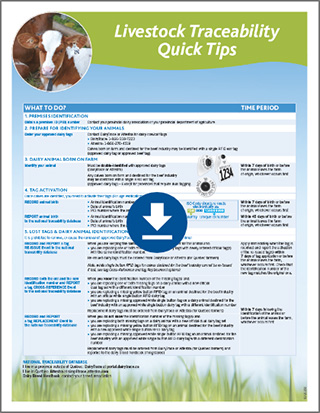
DairyTrace How-To’s
Quick tips, videos, user guides, webinar recordings and paper forms to support DairyTrace Users

How to use the DairyTrace Mobile App
How to get your proAction report
Tag Order Forms
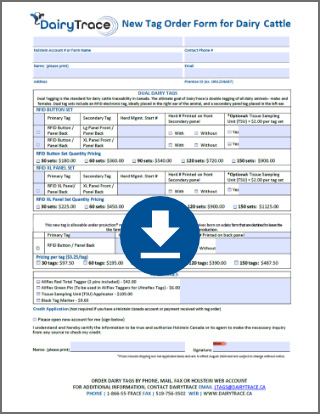
New Tag order form
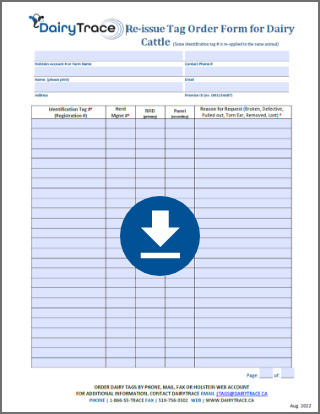
Tag Reissue order form
Tag Activation / Birth Tutorial
Move-in Event Reporting
Import Event reporting
Move-out Event Reporting
Export Event Reporting
How to use the DairyTrace Premises Search Tool
DairyTrace Webinar: All Things Event reporting
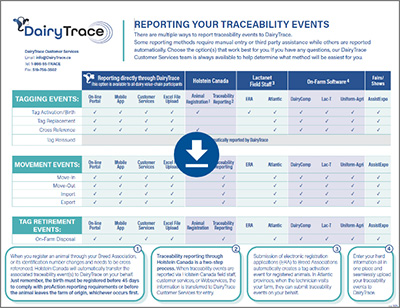
Reporting Methods Guide
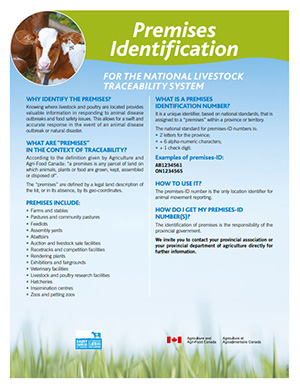
Premises ID factsheet
You can authorize the inclusion of your Premises ID in the DairyTrace Premises Search tool to make it searchable by other users.
When you first activated your DairyTrace account, you selected either “I authorize” or “I don’t authorize”.
If you originally chose “I don’t authorize” and would like to update your selection, you have two options:
1. Contact Customer Services and they will make the change in your account.
2. Through your account on the DairyTrace portal.
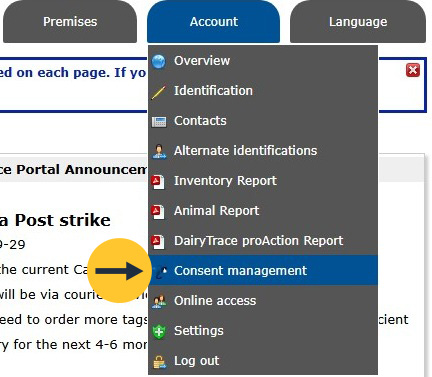
Here’s how: Once logged in, under the Account tab, go to Consents Management.
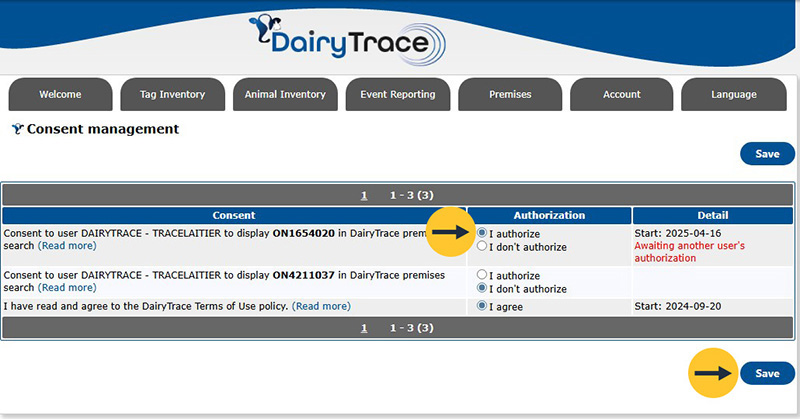
From there, change your consent to “I authorize” and click Save.
It is best practice to report the “move-out” event to DairyTrace but when the animal returns to your farm, you must report the “move-in” event to comply with proAction requirements.
Here are a few more quick reminders:
Tag retirement – when animals are disposed of on-farm
When deceased animals are disposed of on farm, it is required by proAction and the federal government (CFIA) regulations to report a tag retirement.
Under proAction, the tag retirement must be recorded on-farm and reported to DairyTrace within 7 days of the event.
Tagging of stillborn calves is not required if they are disposed of on farm. Tagging is required, however, if they are leaving the farm to go to a rendering facility, which will subsequently report the tag retirement.
For either scenario, the event needs to be recorded on farm, but if the carcass leaves your premises, you do still need to complete a tag activation event to report when the calf was tagged.
Move-out – when animals are disposed of off-farm
When a renderer or deadstock removal company picks up the carcass, it is highly recommended to report a move-out event to remove the animal from your DairyTrace account. That way, it guarantees that your herd inventory list remains accurate. The renderer is required to report the tag retirement.
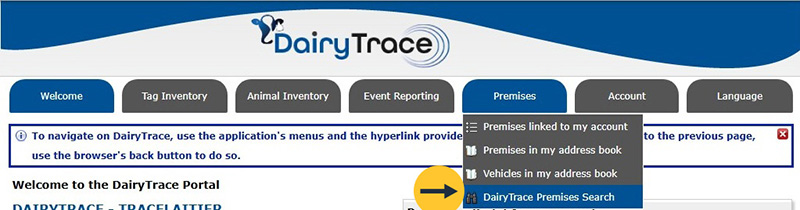
To find a Premises ID in DairyTrace, click Premises and then DairyTrace Premises Search.
Choose to search based on the Account Info or the Premises Info.
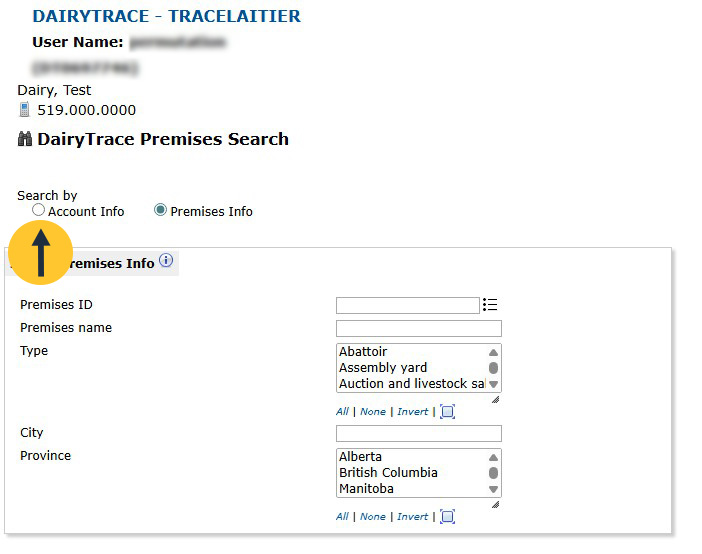

Hint: Click on the ‘i’ for helpful tricks when using the search filters to find what you need.

If the search finds the PID you need, click the green plus to add the PID to your address book.
Note: If the PID is already in your address book, you will see a green flag icon instead of the green plus.
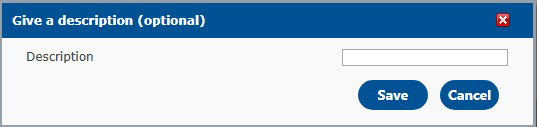
Enter a description of the PID to save it to your address book.
The PID is now saved in your address book so you can complete event move-ins easily coming from this location.
Note: These PIDs from the public search are only visible to DairyTrace users.
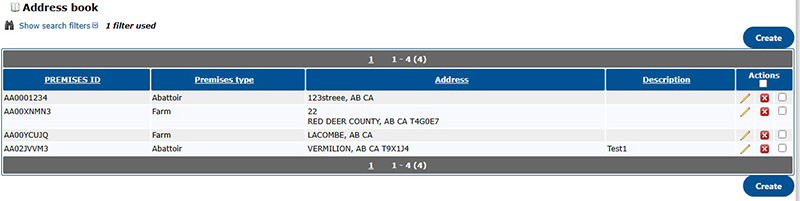
If the Premises ID is not in the Premises Search tool, contact the operator of the previous location to request it. If you are still unable to obtain the Premises ID, contact DairyTrace Customer Services for assistance.
For any event type, from tagging to animal movement, you can report multiple animals at once.
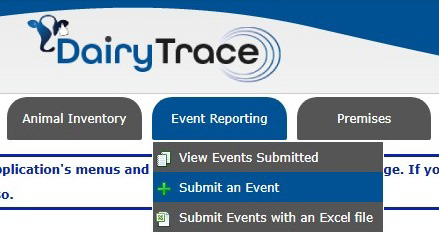
Select Event Reporting, then Submit an Event and choose the event you want to report.
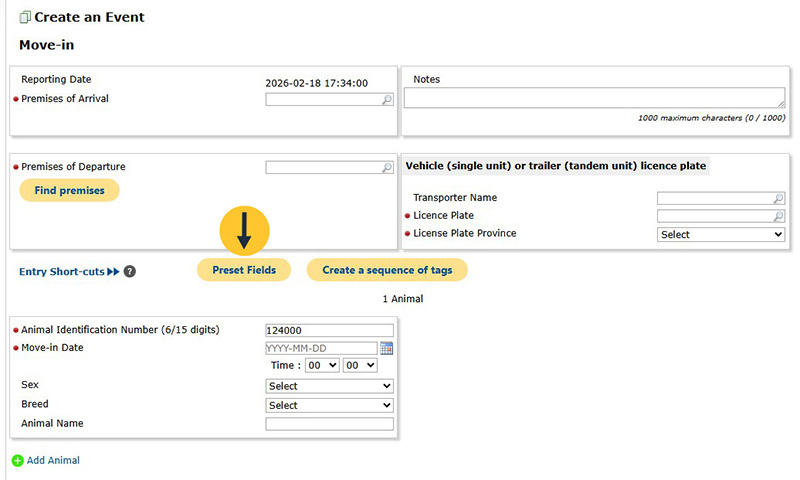
Click Preset Fields.
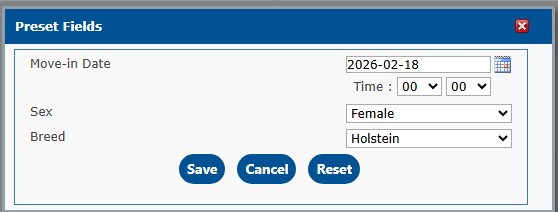
This will allow you to enter the event date, sex, and breed for all animals.
Enter all relevant information for the event and click Confirm & Submit.
From the Welcome page, under the Event Reporting tab, click View Events Submitted.
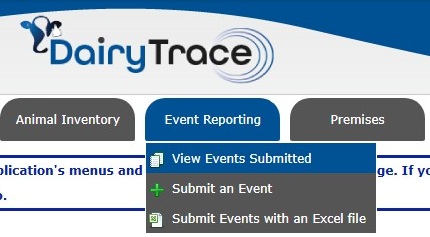
Your list of reported events will show by date submitted, with the most recent at the top.
Under the Actions column, click the pencil icon to edit.
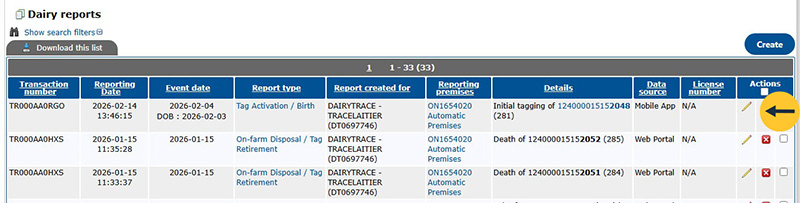
When you’re done editing, click Confirm & Submit.
It’s a best practice to include sex and breed of animals when reporting traceability events through the DairyTrace Portal.
Here’s how:
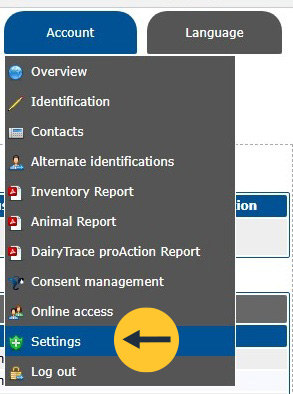
Log into the DairyTrace Portal, select the Account tab, then go to Settings in the drop-down menu
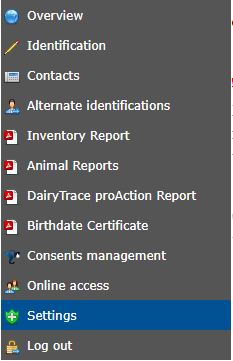
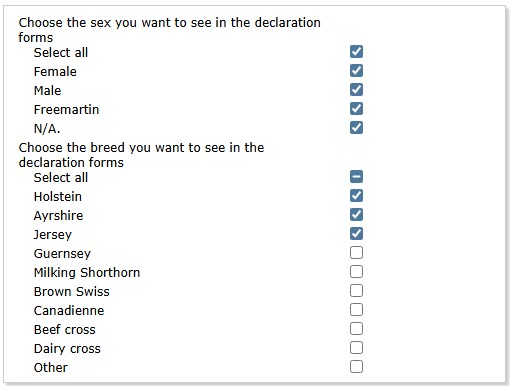
Then from the breed list, select only the breeds that you would like to have as options when reporting events. You can do the same thing for sex.
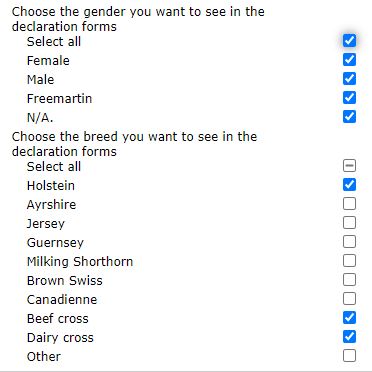
Next, click Save.
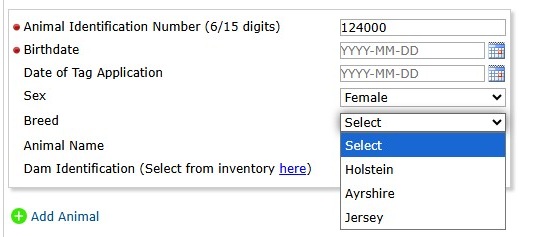
Now when you report events, your choices will be reflected to only show the breeds you’ve selected in the dropdown menu which may help you report faster.
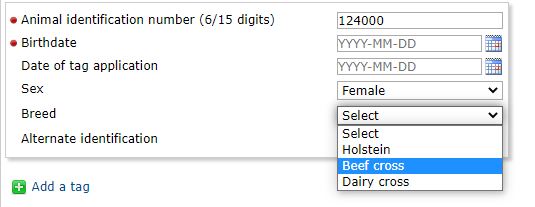
Note: At this time, sex or breed preference selections do not transfer over to the DairyTrace app. However, if these details are added in the mobile app, the information will be transferred to the same account in the portal.
Step 1: Sign into your DairyTrace account (https://portal.dairytrace.ca).
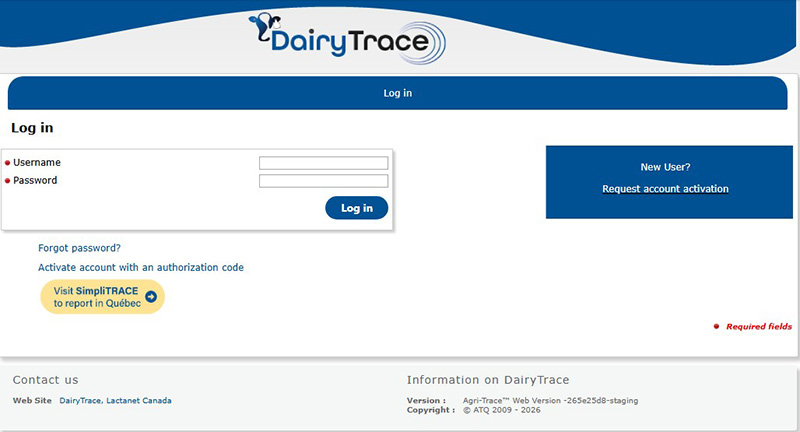
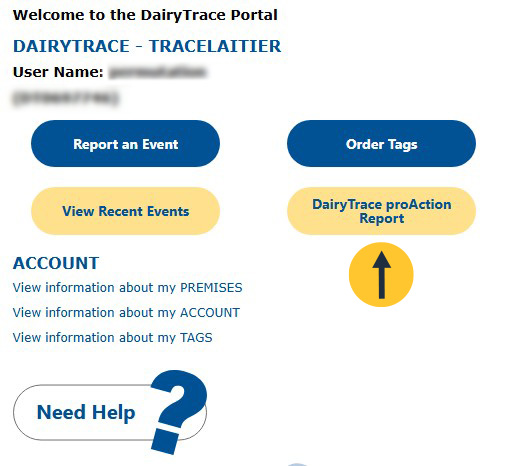
From the welcome page, select DairyTrace proAction Report.
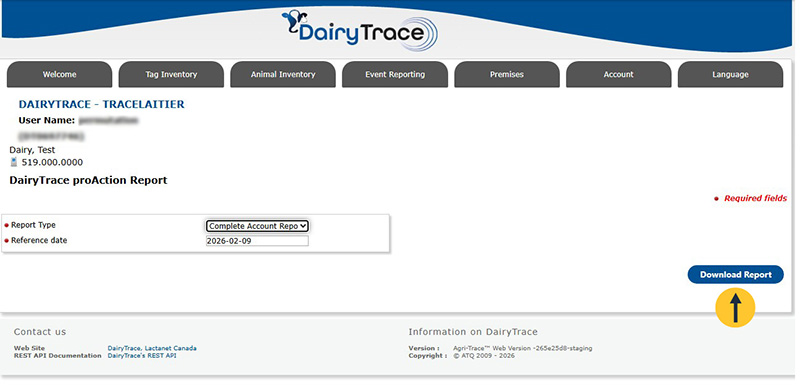
Generate the report:
The reference date is set by default to the current date and cannot be overridden.
Click Download Report to generate your PDF report.
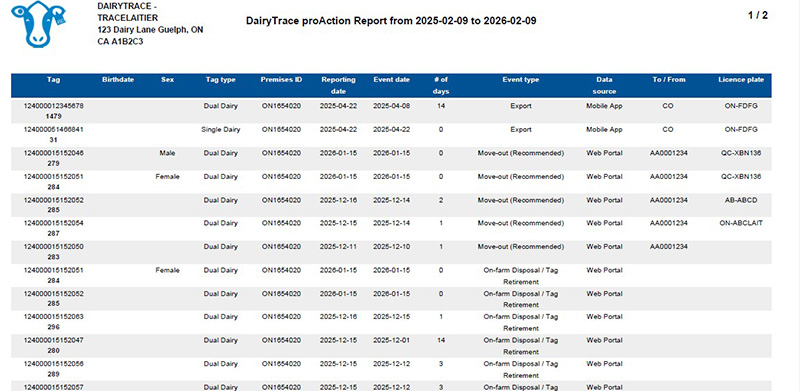
Your report will show all activities from the prior year. Save it to your computer or print it to have it available during your validation.
You can use the DairyTrace app to report all traceability events on an animal’s life, from birth to end of life.
Use the app to report tag activation/birth events
Tag and then report birth events while in the barn. The app links to your single and dual tag inventory so you can choose the tag number(s) from your list of “My available tags”. It’s also recommended to add in the sex and breed for this event report.
When you’re on the go, report movements using the app
The app links to your Premises Address Book in the DairyTrace Portal, making reporting easier when you save premises for future movement reporting.
Move-in: Save time by reporting at the time of unloading when you have both the licence plate and Premises ID numbers handy.
Move-out: Select from your “Animals on farm” list to report at the time the animals are leaving. This makes it easy to report multiple animals on the same transport, too.
You can enter events in the app even when there’s no internet connection. The app will automatically sync them when you have a connection.
You can easily view your list of reported events from the DairyTrace Mobile App. From the home screen, tap the three horizontal lines in the top left corner.
Select View sent events from the menu. Your list of reported events will show by date submitted, with the most recent at the top.
If you need to make a correction on a sent event, you will need to edit in the DairyTrace portal on your computer, as the App currently does not have this function.
New tag order form
Tag Reissue order form
Successful Tag Retention
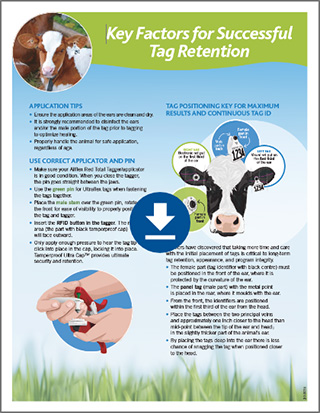
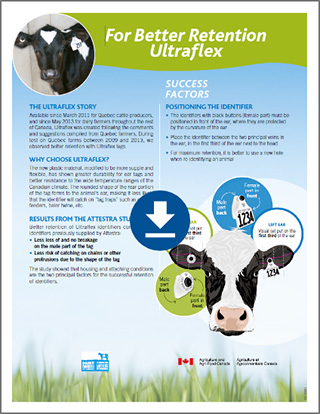
Ultraflex Better Tag Retention
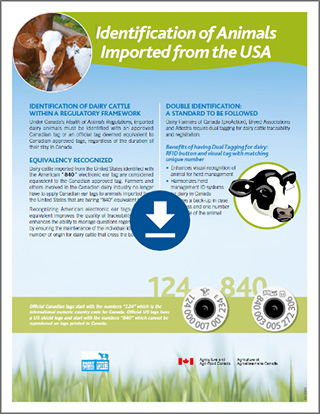
Identification of Animals Imported from the USA
From your account home page, select the Tag Inventory tab.
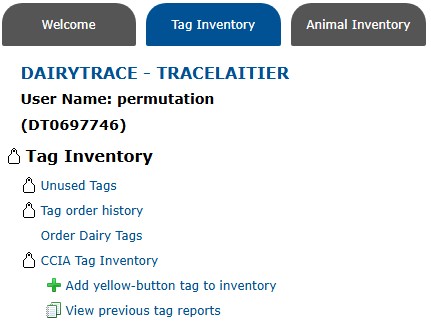
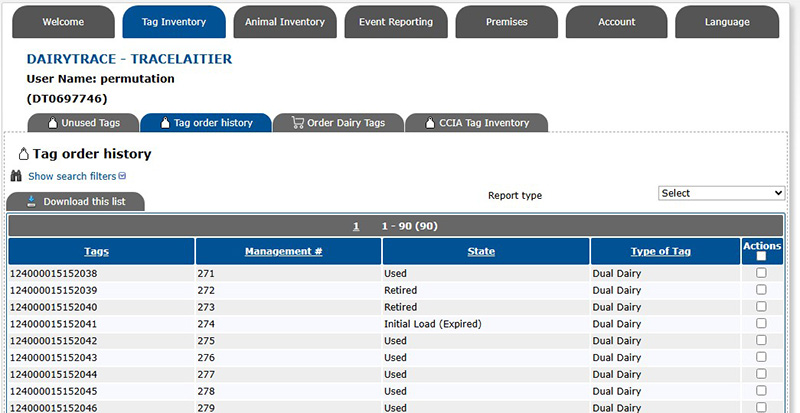
To view your available tags, select Unused Tags. You will see all white dairy tags that are automatically issued to your account and have not yet been linked to an event report.
Select Tag order history to see a list of all tags registered to your account with the State and the Type of Tag (Dairy or Beef). For information on how to sort and filter this list, click here.
To see your list of available tags when reporting an event:
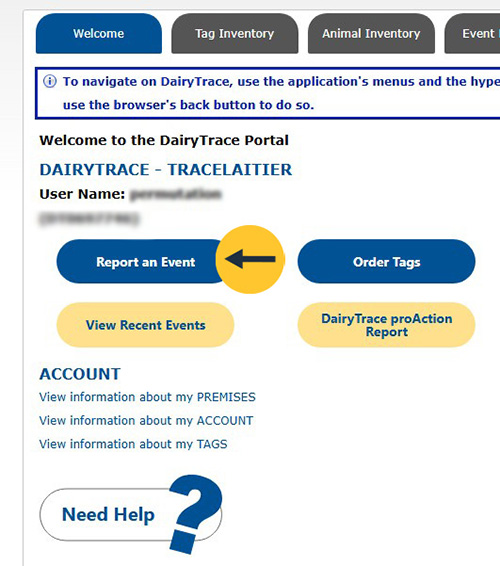
On your account home page, select Report an Event and select the event you want to report.
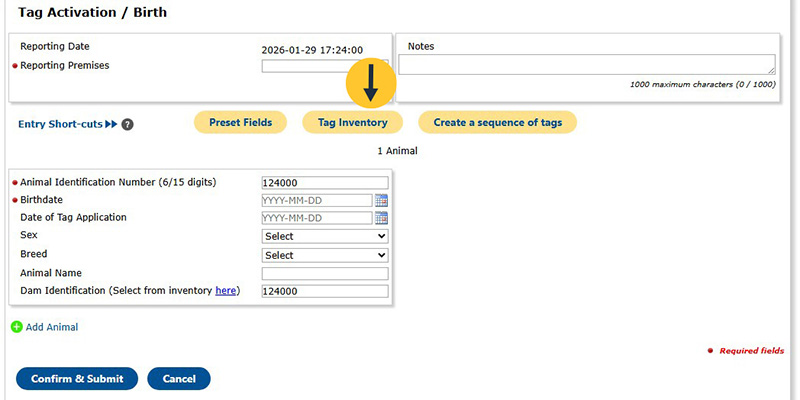
The example below shows Tag Activation / Birth.
Click Tag Inventory.
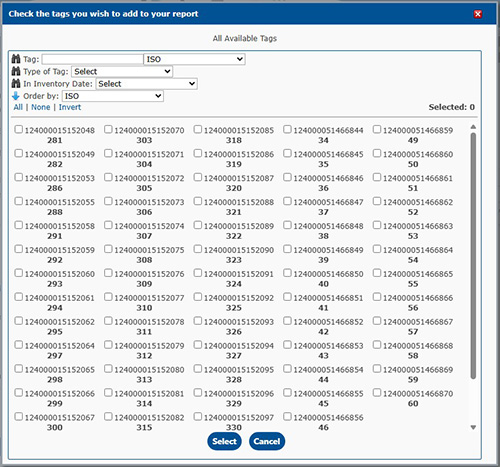
You will then see a list of all the tags issued to your account. Select the tag(s) you want to use for that event report.
Dairy animal ear tags can be ordered through DairyTrace Customer Services by phone, email, or online through Holstein Canada’s website. Dairy producers in Quebec must continue to order their tags directly through Attestra.
Any Canadian dual dairy tag sets are free to replace (except for animals born in Quebec). You can order the same number and apply the new reissued tag to the ear. Seven days after the tag is shipped, DairyTrace will automatically report the Tag Reissued event, under the assumption the tag has been reapplied.
If you are shipping the animal and are unable to wait for a new RFID tag to arrive, you can apply a white RFID tag from your own supply and report a Cross Reference event in DairyTrace.
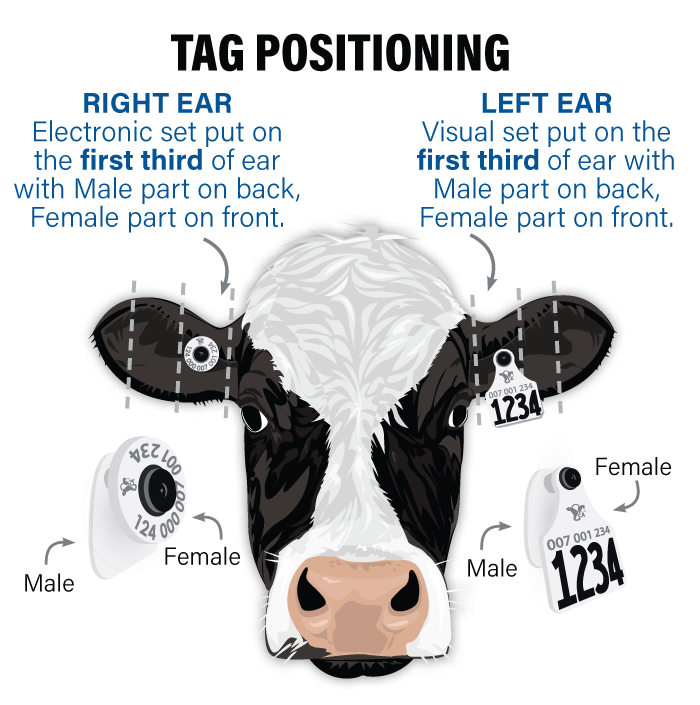
Tag placement is key for long-term retention.
Place tags in the slightly thicker and tougher part of the calf’s ear, close to the head in the first third (1/3) of the ear and between the two ribs (cartilage bands) of the ear. This is ideal for tag retention due to the natural curvature of the ear and reduces snags while allowing animal growth. Application too deep in the ear is not recommended, as some air space is needed for proper healing.
Ensure the application areas of the ears are clean and free of any debris prior to tagging. It is recommended to disinfect the ears or tags to optimize healing.
The female part of the tag (black cap) sits at the front of the ear and the male part (the stem), at the back.
The identifiers with black buttons (female part) must be positioned in front of the ear, where they are protected by the curvature of the ear.
For maximum retention, it is better to use a new hole when re-identifying an animal.
Using the DairyTrace portal
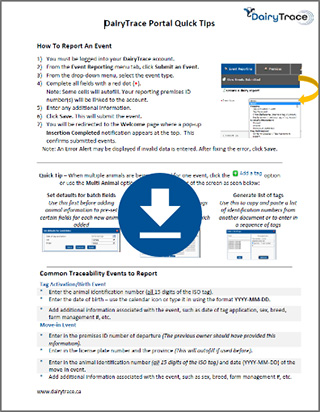
Portal Quick Tips
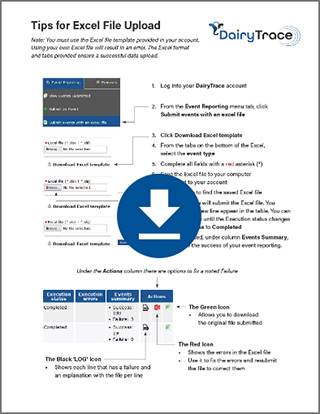
Tips for Excel file upload
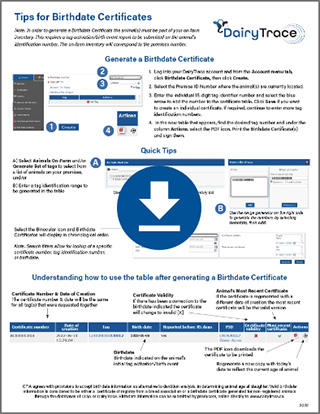
Tips for Birthdate Certificates
To see the current herd inventory linked to your farm premises, go to the Animal Inventory tab at the top of the page, then select Animals On farm. You can also choose to see a list of Animals Moved Off-premises or On-farm Disposal/Tag Retirement.
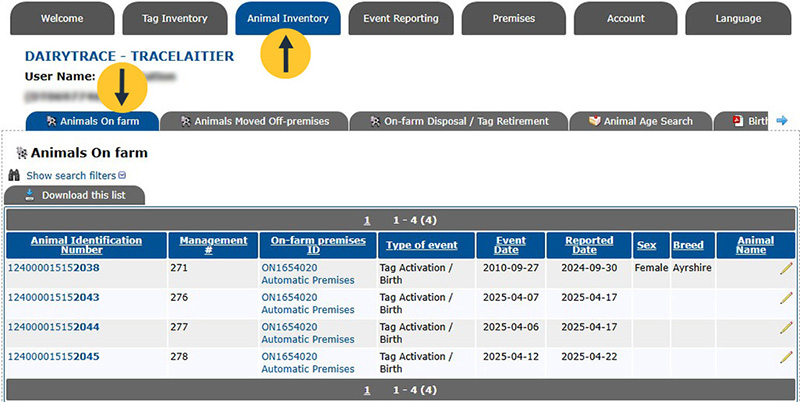
To sort the list, click the blue header of the column of your choice. A black arrow will appear, which you can click to sort the entries in ascending or descending order.

Looking for a specific animal?
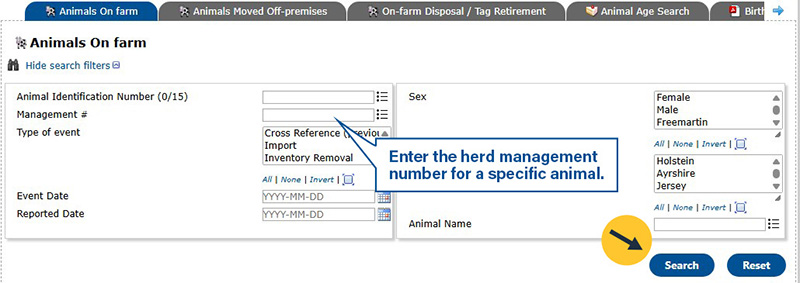
You can also filter your list. Click Show search filters at the top left of the page.
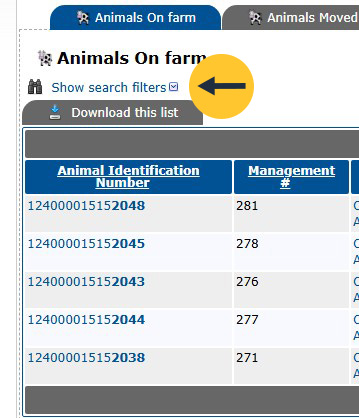
Then, set your filters. For example, enter the herd management number for a specific animal in the field Management #. Then click Search.
Forgot your DairyTrace username or password?
Select Reset your password.
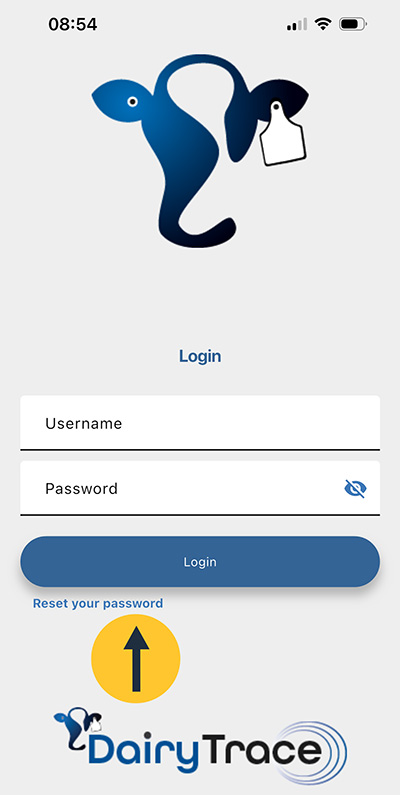
Provided there is an internet connection, the DairyTrace Portal website will open on your phone. Follow the instructions to reset your password through the portal.
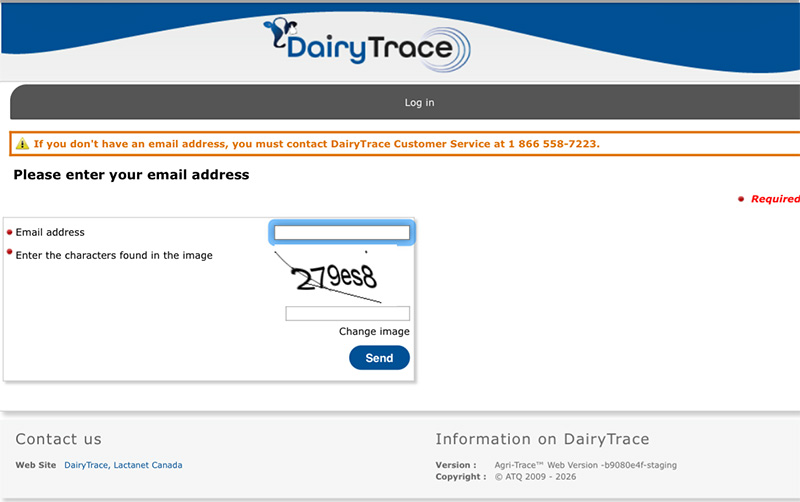
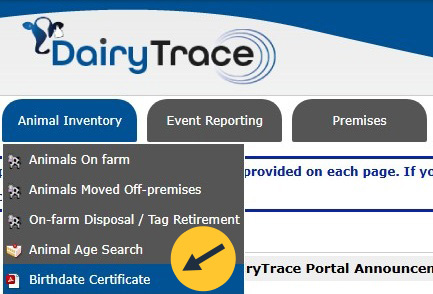
Log into your DairyTrace account. From the Animal Inventory tab, click Birthdate Certificate.
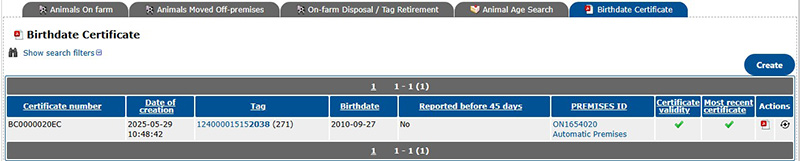
Click Create.
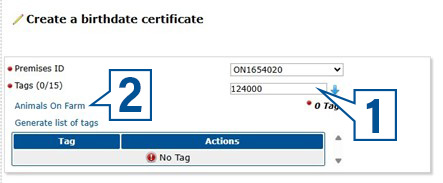
Select the Premises ID where the animal(s) are currently located.

To select the animals to include in the certificate, you can either:
Once all tags are added under Actions, click Save.
Click the PDF icon to generate the certificate.
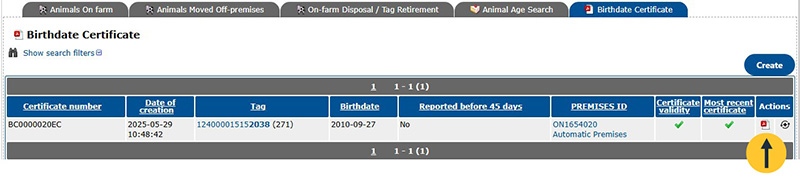
Print and sign the birthdate certificate.
Log into the DairyTrace Portal, select the Account tab, then go to Settings in the drop-down menu.
From the breed list, select only the breeds you want as options when reporting events. You can do the same for sex.
Click Save.
Now, when you report events, your choices will be reflected to only show the breeds you’ve selected in the drop-down menu, which may help you report faster.
Note: At this time, sex or breed preference selections do not transfer to the DairyTrace App. However, if these details are added in the App, the information will be transferred to the same account in the Portal.
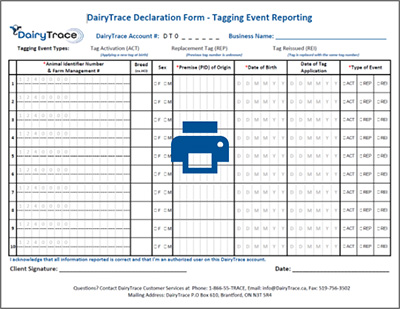
DairyTrace Declaration Form: Tagging Event Reporting
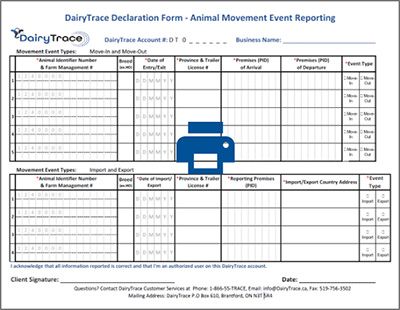
DairyTrace Declaration Form: Animal Movement Event reporting
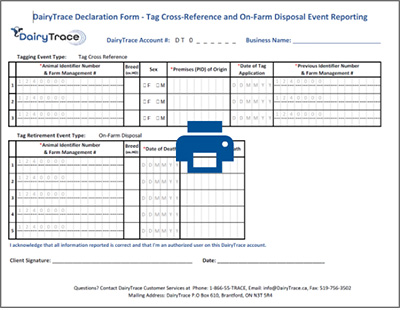
DairyTrace Declaration Form: Tag Cross-Reference and On-Farm Disposal Event Reporting
New Tag order form
Tag Reissue order form



DairyTrace
660 Speedvale Avenue West, Suite 101
Guelph, Ontario N1K 1E5
© DairyTrace 2026 | Contact Us | Media | Privacy Policy